
Opening the tree view
Every Jira project with a configured hierarchy gets a Tree panel in the project sidebar. Click it to open the hierarchized issue view.
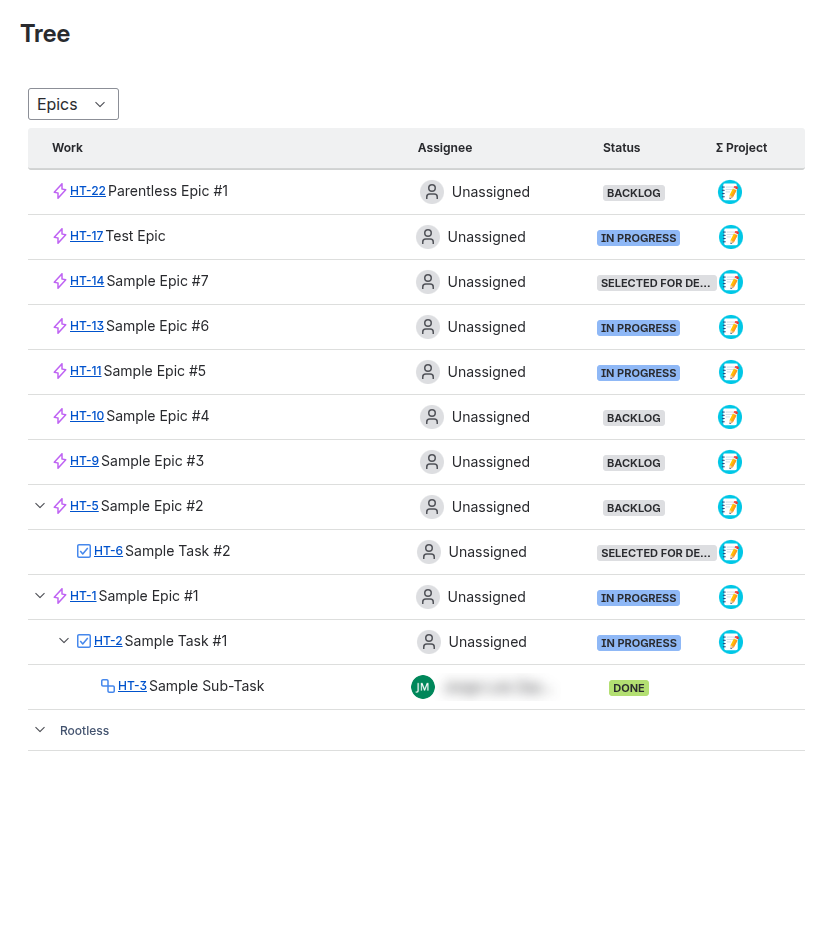
At the top of the panel, use the dropdown to select which hierarchy to display. If a default hierarchy is configured, it’s selected automatically.
Understanding the tree
The tree displays your project’s issues in a parent-child structure matching your hierarchy configuration:
- Container issues (like Epics or Stories) show expand/collapse arrows
- Leaf issues (like Sub-tasks) appear at the bottom of their branch
- Each row shows the issue key, type, summary, status, and assignee
The tree loads progressively — expanding a container fetches its children on demand. This keeps the view responsive even for large projects.
Navigating the tree
- Expand — Click the arrow (▶) next to a container issue to reveal its children
- Collapse — Click the arrow (▼) to hide children
- Open an issue — Click the issue key or summary to open the full issue view in a modal
- Expand all — Use the expand button in the toolbar to reveal the entire tree at once
Creating child issues
You can create new issues directly from the tree, preserving hierarchy relationships automatically:
- Find the parent issue you want to add a child to
- Click the Create link in the Actions column
- The create dialog opens with the necessary fields pre-filled:
- The parent link or field is set automatically
- The issue type is constrained to valid child types for that level
- Fill in the summary and any other required fields
- Click Create
The new issue appears in the tree immediately.
Aggregated columns
Depending on your hierarchy configuration, additional columns appear in the tree showing computed values:
| Column | Description |
|---|---|
| Progress | A bar showing the percentage of child issues in each status category (To Do, In Progress, Done) |
| Pending Team | Avatars of team members assigned to incomplete child issues |
| Custom fields | Any aggregated fields or custom aggregators configured for the hierarchy |
Aggregated values update automatically when child issues change. See Aggregated Fields for details on configuring these.
Tips
- Large projects — The tree handles thousands of issues. Collapse containers you’re not working with to keep the view fast.
- Multiple hierarchies — Switch between hierarchies using the dropdown to see different relationship structures in the same project.
- Refresh — The tree updates automatically when issues change. If you need to force a refresh, reload the page or re-select the hierarchy.